Preview windows
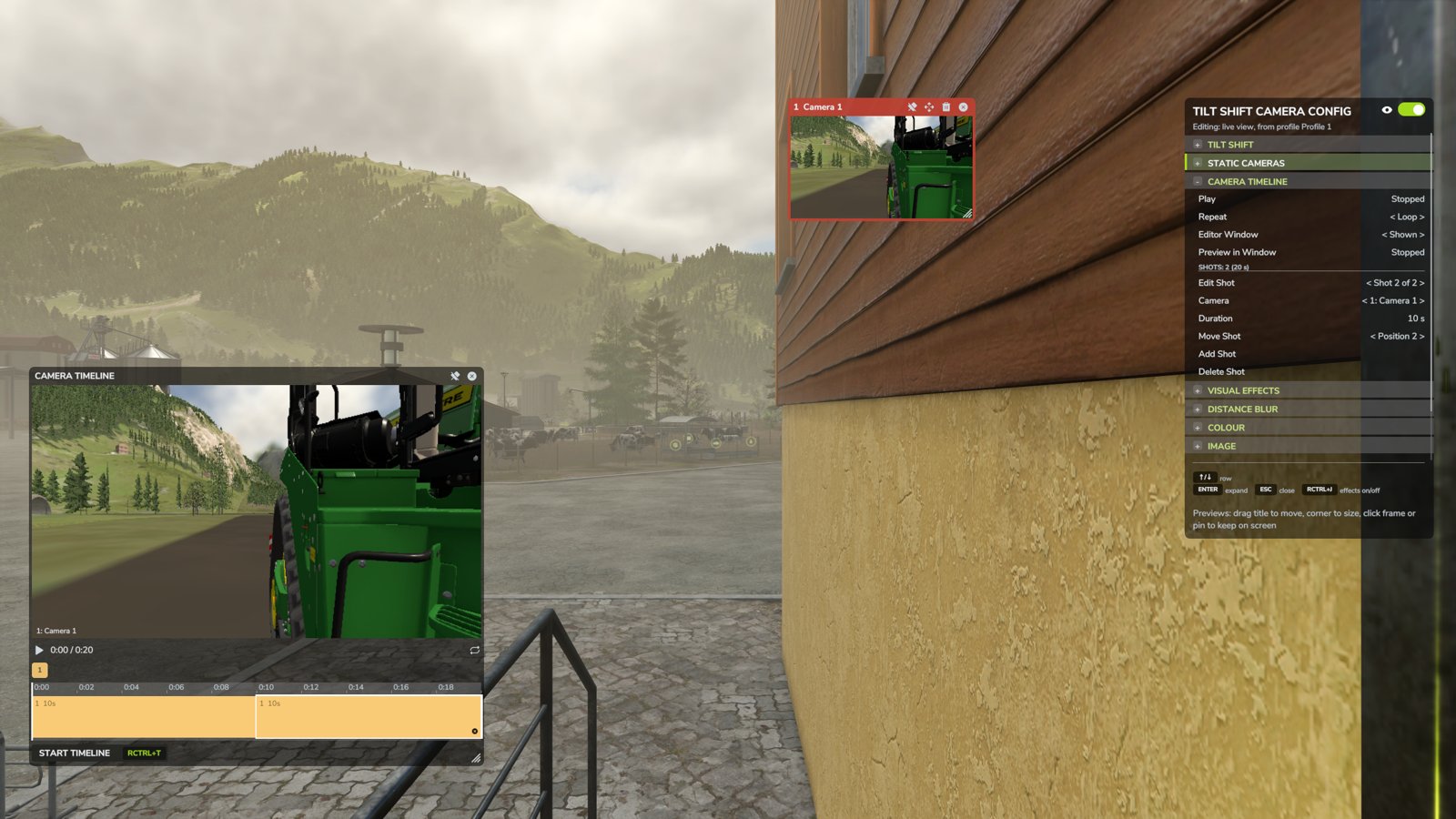
Preview windows show the live view from each static camera next to the panel, so you can see all your cameras at once.
Switch them on first
Preview windows need static cameras. With Static Cameras on, set Preview Windows in the panel's EXTRAS rows to ON.
Using the windows
The windows are shown while the panel is open. Each window has a title bar with the camera's number and name, and the camera's live view below it.
To move a window, drag its title bar. To resize it, drag the grip in its bottom-right corner; the picture keeps its proportions. Click the picture to select that camera for editing in the panel.
To keep a window on screen after you close the panel, click its frame or its pin button. Windows that are not pinned close with the panel.
The buttons in the title bar, from right to left:
| Button | What it does |
|---|---|
| × | Hides the window. Use the camera's Preview Window row in the panel to show it again |
| Bin | Deletes the camera, after the game's Yes/No dialog |
| Fly | Lets you fly the camera to a new position (see Flying a camera into place) |
| Pin | Keeps the window on screen when the panel is closed |
Frame colours
The camera you are editing in the panel has a green frame. The camera on air, which is the one shown in the camera timeline's monitor, has a red frame.
Details
The position, size and pin of each window are saved with your cameras. The UI Scale row in the panel changes the size of the windows along with the panel.
Pinned windows update a little less often while the panel is closed, to save performance. If you have a lot of cameras, the panel shows windows for up to eight of them, centred on the camera you are editing.
The preview windows show each camera's view without the mod's effects. The tilt-shift blur, the distance blur and the weather effects are only shown in the main view.