The panel
All of the mod's settings are in one panel on the right of the screen. Press Right Ctrl + K to open it and Right Ctrl + K or Esc to close it. The game keeps running while the panel is open, but your keys control the panel instead of your character or vehicle. The game is dimmed behind the panel while it is open. When you close the panel, you are back at the view you opened it from, even if you looked through a static camera while it was open. If you have unsaved changes to a profile, the panel asks whether to save them before it closes.
Layout
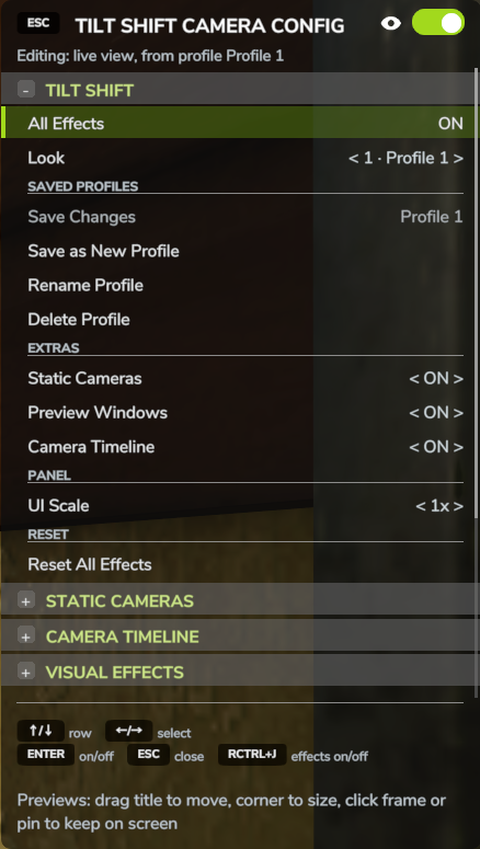
The title bar reads TILT SHIFT CAMERA CONFIG. The Esc chip at its left end closes the panel. The switch at its right end, next to the eye icon, turns all effects on and off, like Right Ctrl + J.
The line under the title tells you what the effect settings currently apply to: your own view or a static camera, and which saved profile or built-in look it started from.
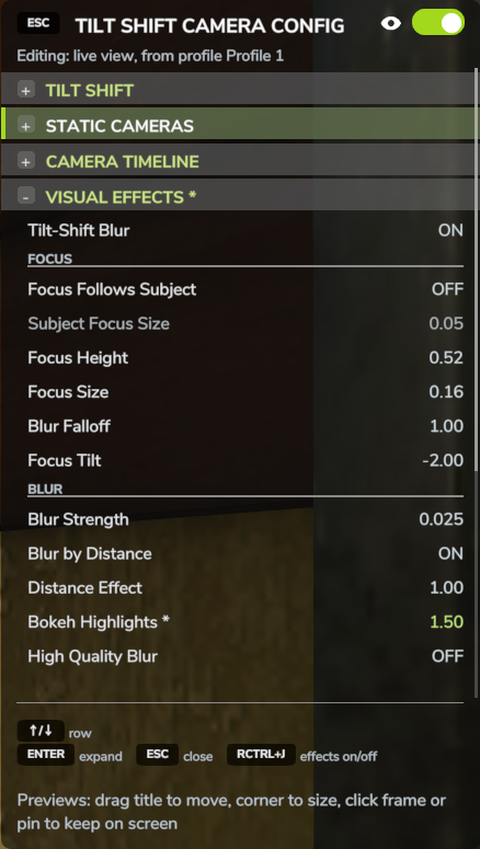
The settings are grouped into sections, such as TILT SHIFT, VISUAL EFFECTS and WEATHER, which you can fold and unfold. Only the first section is open the first time you use the panel; after that it remembers which sections you left open. The legend at the bottom shows the keys you can use on the selected row.
Values you have changed since you last applied a look or saved a profile are shown in green, with an asterisk after the row's name. The header of a section with a changed value carries the asterisk too, so a folded section still shows that something inside it changed.
Keyboard and gamepad
| Key | What it does |
|---|---|
| Up / Down arrows | Select the row above or below |
| Left / Right arrows | Change the selected value or option |
| Page Up / Page Down | Change the value in big steps |
| Enter or Space | Fold or unfold a section, run an action, flip a switch, or reset a value to its default |
| Esc | Close the panel |
You can also use the number pad: 8 and 2 move the selection, 4 and 6 change the value, 7 and 9 change it in big steps, and 5 works like Enter.
On a gamepad, use the d-pad to move the selection and change values, the confirm button as Enter and the back button to close the panel.
Mouse
Click a section header to fold or unfold it, and click a row to select it. Clicking a switch or an action row runs it straight away.
To change a value, click the < or > next to it, or drag it sideways. Hold Shift
while clicking for big steps.
The mouse wheel scrolls the list. To change a value with the wheel instead, click its row first: a green bar appears on the left of the row, and the wheel now changes that value. Click the row again to go back to scrolling.
You can also click the Esc and Right Ctrl + J keys shown in the legend. Over the game world, outside the panel, the mouse wheel zooms your camera as usual.
The TILT SHIFT section
The first section holds the settings you will use most.
- All Effects
- Turns all effects on or off, like Right Ctrl + J. Your settings are kept, whether you have saved them or not.
- Look
- Choose a built-in look or one of your saved profiles. See Looks and profiles.
- SAVED PROFILES
- Save Changes, Save as New Profile, Rename Profile and Delete Profile. See Looks and profiles.
- EXTRAS
- Static Cameras, Preview Windows and Camera Timeline. Each row appears once the one above it is on. See Static cameras, Preview windows and Camera timeline.
- UI Scale
- 0.75x, 1x or 1.25x. Changes the size of the panel and all the mod's windows. At 1x the panel matches the size of the game's HUD.
- Reset All Effects
- Turns every effect off and restores the game's normal look: the tilt-shift blur, distance blur, stop motion, custom field of view, flat view, lens shift, colour grading, brightness, sharpness and camera distance. Your saved profiles are not changed.