Camera timeline
The camera timeline switches between your static cameras automatically. You make a list of shots, each showing one camera for a set number of seconds, and then start the timeline. It is useful for recording a timelapse while your workers do the fieldwork, or a video that cuts between several angles of the farm.
Switch it on first
The timeline needs static cameras and preview windows. With both on, set Camera Timeline in the panel's EXTRAS rows to ON. The CAMERA TIMELINE section and the editor window then appear.
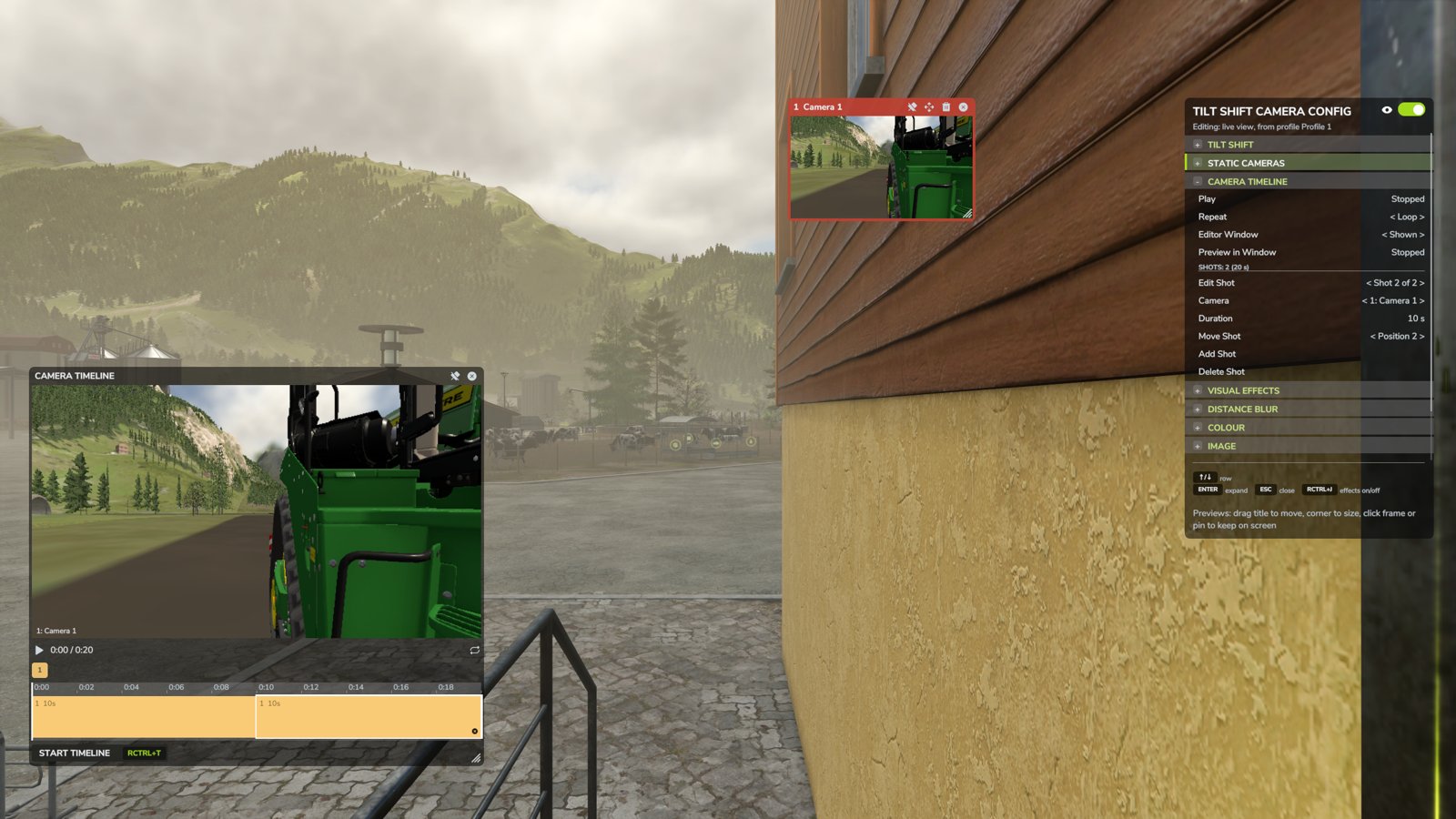
The editor window
The CAMERA TIMELINE window opens next to the panel. From top to bottom, it contains:
- The monitor
- Shows the view from the camera at the playhead. Click it to play or pause the timeline in the monitor.
- Transport
- The play button plays the timeline in the monitor only; the main view does not change. The time is shown next to it. The repeat button on the right switches between Loop and Once. When it is set to Once, the repeat icon is crossed out.
- Camera palette
- One chip for each camera. Click a chip to add a shot of that camera to the end of the timeline, or drag it onto the track to insert the shot at that point.
- Ruler and track
-
The track shows one block for each shot, coloured by camera. You can:
- click a block to select it and move the playhead to its start;
- drag a block to move the shot earlier or later;
- drag the right edge of a block to change the shot's length, in whole seconds;
- click the × on a block to delete the shot.
Click the ruler or an empty part of the track to move the playhead. Drag along the ruler to scrub through the timeline, or drag an empty part of the track to scroll it. Use the mouse wheel to zoom in and out around the pointer; when you zoom in, a scroll bar appears under the track. You can zoom and scroll beyond the end of the last shot.
- Start Timeline
- Plays the timeline on the main view. Its shortcut, Right Ctrl + T, is shown next to the button.
You can move and resize the editor window like a preview window, by dragging its title bar and the grip in its bottom-right corner. The pin keeps it on screen when the panel is closed, and × hides it (use the panel's Editor Window row to show it again). While the monitor is playing, the preview window of the camera shown in the monitor has a red frame.
The CAMERA TIMELINE section
You can also do everything in the panel, with the keyboard or a gamepad.
- Play
- Shows whether the timeline is stopped or, while it plays, the current shot and the seconds left. Press Enter or click the row to start the timeline, like Start Timeline.
- Repeat
- Loop or Once.
- Editor Window
- Shown or Hidden.
- Preview in Window
- Plays or stops the timeline in the editor window's monitor.
- Edit Shot
- Chooses which shot the rows below it change. The heading above it shows the number of shots and their total length. Press Enter to look through the shot's camera.
- Camera
- The camera shown in the shot.
- Duration
- How long the shot lasts, from 1 second to 1 hour, in steps of 1 second (10 seconds with Page Up and Page Down).
- Move Shot
- Moves the shot earlier (Left) or later (Right).
- Add Shot
- Adds a shot after the selected one, with the same duration and the next camera. Press it several times to add one shot for each camera.
- Delete Shot
- Deletes the selected shot.
Starting the timeline
To start the timeline, click Start Timeline, choose the Play row, or press Right Ctrl + T. The panel closes and all windows are hidden, including pinned ones, as well as the game's HUD. The message "Timeline starting in 3.." counts down, with "Press Esc to go back" below it. Then the messages disappear and the timeline plays on the main view. No messages are shown when the timeline changes camera. Nothing of the mod is on screen while the timeline plays, so start your screen recording once the countdown has gone and stop it before you press Esc.
With Loop, the timeline repeats until you stop it. With Once, it plays every shot once and then stays on the last camera.
Press Esc or Right Ctrl + T to stop. You go back to the view you had before, the HUD comes back, and the panel opens again if it was open when you started.
The timeline's clock stops while the game is paused or you are sleeping, so shots are not used up while nothing is happening.
Saving
The timeline is saved with your cameras, in your savegame. When you delete a camera, its shots are deleted too.