Tilt Shift Camera
Tilt Shift Camera is made for filming your farm. It gives Farming Simulator 25 the look of a tilt-shift photograph, lets you place cameras around the map and cut between them, and plays a timeline of camera shots on its own, so you can record videos and timelapses with your screen recording software. Everything is drawn live in the game: what your recorder captures is the finished picture, with no editing afterwards. The mod does not record anything itself.
What it does
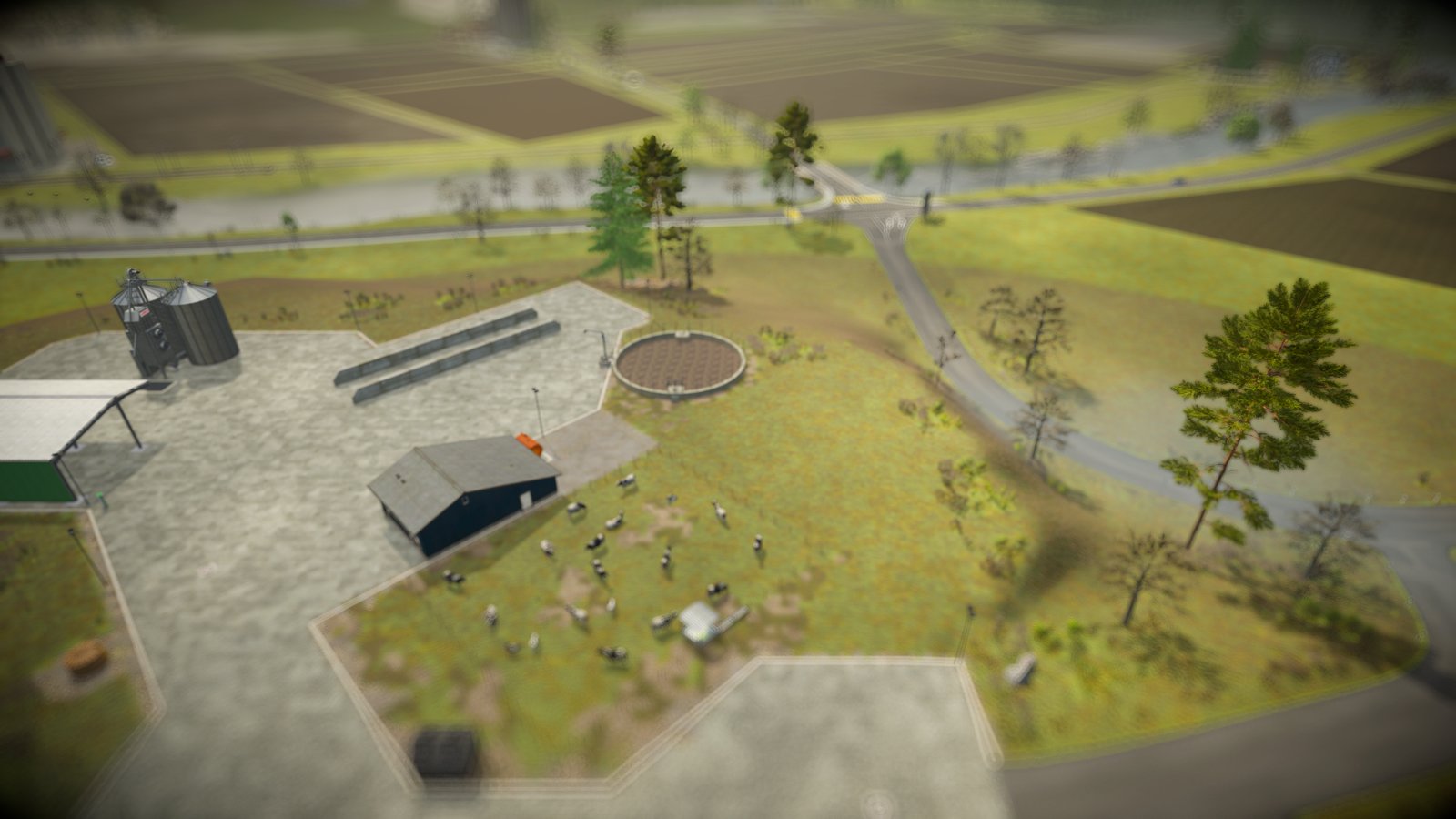
The look: a band across the screen stays sharp and everything above and below it is blurred, which makes the scene look like a miniature model. By default the sharp band follows whatever your camera orbits, so your vehicle or your character stays in focus. You can also add bokeh on bright points, stronger colours and a vignette, change the field of view, remove perspective, shift the lens, zoom the camera out much further than the game allows, and limit the frame rate for a stop-motion look. The mod draws its own rain, snow and hail, which follow the game's weather and blur with the rest of the picture. Save the looks you like as profiles and switch between them with a hotkey, also while you record.
The effect applies to third-person views: on foot in third person, a vehicle's outside camera, the mod's own cameras, and free or cinematic cameras from other mods, because it follows whichever camera is active. Cab views, first person and fixed vehicle cameras such as reversing cameras are left as they are.
All settings are in one panel (Right Ctrl + K), which you can use with the keyboard, a gamepad or the mouse. Click a section to fold or unfold it and a row to select it. Change a value with the arrow keys, by clicking the < and > next to it, or by dragging it sideways. After you click a row, the mouse wheel changes its value. The switch in the panel's title turns all effects on and off. UI Scale (0.75x, 1x or 1.25x) changes the size of the panel and all the mod's windows. The Esc chip at the top left closes the panel, and when you close it you are back at the view you opened it from. The game is dimmed behind the panel while it is open. A setting you have changed since the look was applied or saved is shown in green and marked with an asterisk, and so is the header of its section; when you close the panel with unsaved changes to a profile, it asks whether to save them.
Extras
Three extras are off until you switch them on, one after the other, in the EXTRAS rows of the panel.
Static cameras
Right Ctrl + N adds a camera at your current view, fixed in place in the world. Right Ctrl + C switches to it and back, and Right Ctrl + V switches to the next camera, while you keep driving or walking, so you can film your own work from the side of the field. Each camera has its own effect settings or uses one of your profiles, so every angle can have its own look. You can aim a camera in the panel, or fly it into place with the mouse and W A S D. While you look through a camera, a bar at the bottom of the screen shows the keys to get back; it is part of the HUD and goes away with it. Every camera is marked on the minimap and on the pause menu map, where you can select it to look through it or delete it. After Switch to Camera on the map, the HUD is hidden and you look through the camera: Right Ctrl + P flies it into place, Right Ctrl + K opens the panel and Esc takes you back. Cameras belong to your savegame and are written when the game saves; in multiplayer each player has their own.
Preview windows
A live view from each camera, shown next to the panel, so you can see all your angles at once. You can move a window by its title bar, resize it from its corner, pin it so that it stays on screen when the panel is closed, hide it, fly its camera to a new position, or delete the camera (after a confirmation). The camera you are editing has a green frame, and the camera on air has a red one.
Camera timeline
A list of shots that cuts between your cameras on its own, each shot one camera for 1 second to 1 hour, so a timelapse of your workers in the field can run for as long as you like. You build it in the editor window: drag cameras from the palette onto the track, drag shots to change their order and their edges to change their length, zoom with the mouse wheel, and preview the result in the monitor. Start Timeline (or Right Ctrl + T) hides the panel, all windows and the HUD, counts down from 3 and then plays the timeline on the main view, in a loop or once, staying on the last camera at the end. The cuts are silent: no message appears when the camera changes, so nothing lands in your recording. The timeline's clock stops while the game is paused or you sleep. Press Esc to go back. The timeline is saved with your cameras.
Hotkeys
| Key | What it does |
|---|---|
| Right Ctrl + K | Open or close the panel |
| Right Ctrl + J | Turn all effects on or off (your settings are kept, whether saved or not) |
| Right Ctrl + 1-9 | Apply profile 1-9 and turn the effects on; press the same number again to turn them off |
| Right Ctrl + N | Add a static camera at your current view |
| Right Ctrl + C | Switch to a static camera, or back to the live view |
| Right Ctrl + V | Switch to the next static camera |
| Right Ctrl + T | Start the camera timeline; press Right Ctrl + T or Esc to stop |
| Right Ctrl + P | Fly a camera into place while you look through it from the pause menu map |
| Flying a camera | W A S D move it, the mouse turns it, Shift moves faster, Enter saves, Esc cancels and takes you back to the view you had |
| Arrow keys or number pad | Select rows in the panel; Left and Right change the value (Page Up and Page Down for big steps) |
| Enter | Fold or unfold a section, or run the selected row; Esc: close the panel |
| Gamepad | The d-pad selects rows and changes values while the panel is open |
Known limitations
- Rain, snow and hail are simulated, because of limits in the game engine. I have made them as close to the game's weather as I can.
- Some decals, glass and other transparent materials are not visible while the tilt-shift blur is on. The blur works on a copy of the picture that the game makes before it draws transparent materials.
- Preview windows and the timeline's monitor show each camera's view without the effects. The tilt-shift blur and the weather are only shown in the main view.
- While you look through a static camera on foot, the mod switches you from first person to third person so that your character is visible, and back again when you return to the live view. The game's own camera key (C) does nothing until you go back to the live view.
- The game itself has no key to hide the whole HUD. The timeline and the map's Switch to Camera hide it for you; while you look through a camera with Right Ctrl + C or Right Ctrl + V, the HUD stays on screen.