Effects
Each effect has its own section in the panel. This page describes them in the order the panel shows them. The numbers in brackets are the range of each setting.
Tip
Select a value and press Enter to reset it to its default.
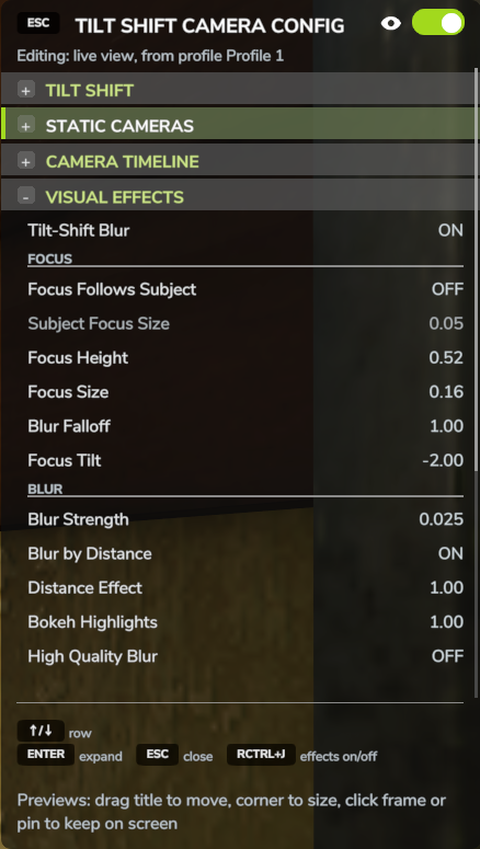
VISUAL EFFECTS
This is the tilt-shift effect: a sharp area across the screen, with blur that increases above and below it. The mod's rain, snow and hail are drawn by the same effect, so they only appear while it is on.
- Tilt-Shift Blur
- Turns the tilt-shift effect on or off.
FOCUS
- Focus Follows Subject
- Keeps the sharp area on whatever your camera orbits: your character, your vehicle, or the subject of a static camera. The further you zoom out, the narrower the sharp area gets.
- Subject Focus Size (0.05 to 2)
- The size of the sharp area around the subject, when Focus Follows Subject is on.
- Focus Height (0 to 1)
- The height of the sharp area on the screen, when Focus Follows Subject is off. 0.5 is the middle of the screen.
- Focus Size (0 to 0.5)
- How tall the sharp area is, when Focus Follows Subject is off.
- Blur Falloff (0.5 to 4)
- How quickly the blur increases outside the sharp area. Low values blur everything outside the sharp area quickly. High values keep more of the picture sharp and blur mainly the top and bottom edges.
- Focus Tilt (-4 to 4)
- Tilts the plane that is in focus, as a tilt-shift lens does. Only has an effect when Blur by Distance is on.
BLUR
- Blur Strength (0 to 0.06)
- The maximum amount of blur, reached at the top and bottom of the screen.
- Blur by Distance
- Bases the blur on how far things are from the plane in focus instead of on where they are on the screen. For example, a roof far behind your subject stays blurred even where it reaches into the sharp area.
- Distance Effect (0.5 to 40)
- How quickly the blur increases with distance from the plane in focus, when Blur by Distance is on.
- Bokeh Highlights (0 to 8)
- Turns bright points in the blurred areas into soft round discs.
- High Quality Blur
- A smoother blur that costs a little more performance.
COLOUR
- Saturation (0 to 3), Contrast (0.5 to 2)
- The saturation and contrast of the picture. Higher values make the colours stronger.
- Vignette (0 to 1.5)
- Darkens the corners of the screen.
DISTANCE BLUR
The game's own depth of field, with distances you set.
- Distance Blur
- Turns the game's depth of field on or off.
- Background Blur (0 to 1.5)
- How strongly the background is blurred.
- Background Blur From (5 to 3000 m), Background Fully Blurred At (10 to 6000 m)
- The distance at which the background starts to blur, and the distance at which the blur is at full strength.
- Foreground Blur (0 to 1.5), Foreground Blur Until (0 to 200 m)
- The same for the foreground. In many views the game shows little or no foreground blur.
COLOUR
The game's own colour grading, with values you set.
- Colour Grading
- Turns the colour grading on or off.
- Saturation (0 to 3), Contrast (0.5 to 2), Midtones (0.5 to 2), Highlights (0.5 to 2)
- The colour grading values.
- Keep Applied
- The game sometimes resets the colour grading while you play. With Keep Applied on, the mod applies your values again every frame.
IMAGE
- Brightness (0.5 to 2), Sharpness (0 to 3)
- The game's own brightness and sharpening.
CAMERA AND LENS
- Camera Distance (off, or 1 to 200 m)
- Lets the third-person camera zoom out much further than the game normally allows, so you can look down on the farm from high above. Works on foot in third person and with a vehicle's outside camera. Cab cameras are not affected.
- Custom Field of View, Field of View (10 to 110 degrees)
- Replaces the camera's field of view. A narrow field of view makes the scene look flatter, as a telephoto lens does.
- Lens Shift Sideways, Lens Shift Up/Down (-0.5 to 0.5)
- Moves the picture sideways or up and down without turning the camera, like the shift function of a tilt-shift lens.
- Flat View, Flat View Size (5 to 400 m)
- Flat View removes perspective, so objects keep the same size however far away they are. Flat View Size sets how many metres of the world fit on the screen from top to bottom.
WEATHER
The game's own rain is not part of the image the effect works on, so it would not be blurred. Instead, the mod draws its own rain, snow and hail, which blur with the rest of the picture.
- Weather Effects
- Turns the mod's rain, snow and hail on or off.
- Match Game Weather
- Follows the game's weather, including the change from one weather type to the next. Turn it off to set the amounts yourself.
- Rain, Snow, Hail (0 to 2)
- How much of each falls when Match Game Weather is off.
- Wind (-2 to 2)
- How far the rain, snow and hail are blown sideways. Negative values blow them the other way.
- Fall Speed (0.1 to 4)
- How fast they fall. 1 is the normal speed.
- Blur With Scene (0 to 4)
- How much the rain, snow and hail are blurred along with the rest of the picture.
STOP MOTION
- Stop Motion
- Limits the frame rate so that movement looks like stop-motion animation.
- Frames per Second
- 8, 10, 12, 15, 24 or 30.