Looks and profiles
A look is a full set of effect settings: everything in the panel's effect sections, such as the blur, the colours, the lens and the weather. The mod comes with five built-in looks, and you can save your own looks as profiles.
Built-in looks
- Robin 3rd Person
- The recommended look for third person: the tilt-shift blur with Focus Follows Subject, Blur by Distance and bokeh. Every other effect is turned off.
- Miniature
- The game's distance blur on the background and a strong colour grade.
- Miniature + Stop Motion
- Miniature at 15 frames per second.
- Subtle
- A lighter distance blur and colour grade.
- Everything Off
- Turns every effect off, like Reset All Effects.
Miniature, Miniature + Stop Motion and Subtle do not change the tilt-shift blur or the weather settings. You cannot edit a built-in look, but you can change its settings and save the result as a profile.
Choosing a look
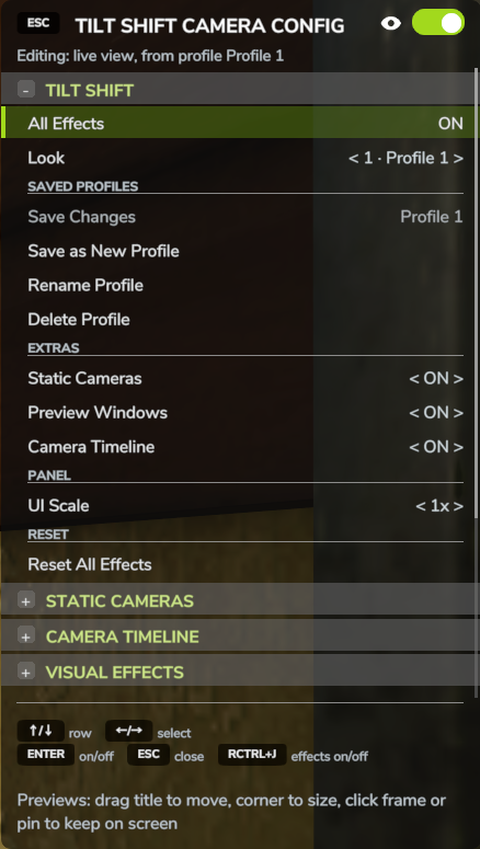
The Look row at the top of the TILT SHIFT section shows the current look. It lists the built-in looks first, then your saved profiles.
Press Left or Right (or click the < and > next to the value) to go through the list.
This only shows the names: nothing changes on screen until you press Enter or click the
row, which applies the look and turns the effects on. If you move to another row without
applying, the Look row shows the current look again.
Saved profiles that have a hotkey show the number before the name, for example 2 · Harvest.
When you change a setting, the Look row adds "(changed)", as in 2 · Harvest (changed), and the values you changed turn green and get an asterisk. If you then apply a different look, the game first asks "Discard your unsaved changes and apply …?". Choose Apply to continue or Cancel to keep your changes. If you close the panel instead, it asks "Save your changes to profile … before closing?": Save writes them to the profile, Don't save closes the panel and keeps them on screen as unsaved changes.
If the current settings do not belong to any look in the list, for example because you deleted the profile they came from, the Look row shows Custom.
Saving your own look
The SAVED PROFILES rows below the Look row work on the profile that is currently applied. Rows you cannot use at the moment are greyed out.
- Save Changes
- Saves your changes to the current profile. The profile's name is shown on the right of the row. Only available when a saved profile is applied and you have changed something.
- Save as New Profile
- Saves the current settings as a new profile, named Profile 1, Profile 2 and so on, and makes it the current look.
- Rename Profile
- Opens the game's text box so you can rename the current profile. Names can be up to 32
characters long. Characters that are not allowed in file names (
\ / : * ? " < > |) are removed, and you cannot use a name that another profile already has. - Delete Profile
- Deletes the current profile after you confirm. The settings on screen stay as they are, and the Look row shows Custom.
To change a profile that is not the current one, apply it in the Look row first.
When you first install the mod, it saves its default settings as Profile 1, on hotkey 1.
Hotkeys
Right Ctrl + 1 to Right Ctrl + 9 apply your saved profiles straight away, without asking about unsaved changes, and turn the effects on. Pressing the same number again turns the effects off.
Each profile keeps its number until you delete it. A new profile gets the lowest free number, and renaming a profile does not change its number. If you have more than nine profiles, the extra ones have no hotkey but are still listed in the Look row.
The line under the title
The line under the panel's title shows what the effect settings currently apply to and which look they came from:
| The line reads | Meaning |
|---|---|
| Editing: live view | Your own view, not based on a saved profile or built-in look |
| Editing: live view, from profile Harvest | Your own view, based on a saved profile |
| Editing: live view, built-in look Miniature | Your own view, based on a built-in look |
| Editing: Camera 1, its own look | A static camera with its own settings |
| Editing: Camera 1, uses profile Harvest | A static camera that uses a saved profile |
Static cameras and profiles
Each static camera has a Look setting of its own. It is either Own, meaning the camera keeps its own settings, or one of your saved profiles.
With Own, any change you make while looking through the camera is saved with the camera, so it never shows as an unsaved change.
With a profile, looking through the camera applies that profile. Changes you make show as "(changed)", and Save Changes saves them to the profile, which also updates every other camera that uses it. If you switch away without saving, the changes are lost.
If you apply a look while looking through a camera:
- applying a saved profile to a camera that uses a profile switches the camera to the new profile;
- applying a saved profile to a camera with its own settings copies the profile's settings into the camera;
- applying a built-in look to any camera gives the camera that look as its own settings.
Renaming a profile updates every camera that uses it. Deleting a profile leaves its settings on those cameras as their own.
After a restart
The mod remembers the current look when you quit. If you changed a saved profile without saving, the Look row still shows "(changed)" the next time you play.