Static cameras
A static camera stays at a fixed point in the world. You can place several, for example around a field, and switch between them while you keep playing. The game is not paused while you look through a static camera.
Switch them on first
Open the panel (Right Ctrl + K) and set Static Cameras in the EXTRAS rows to ON. The STATIC CAMERAS section then appears in the panel.
Adding and switching
| Key | What it does |
|---|---|
| Right Ctrl + N | Add a camera at your current view |
| Right Ctrl + C | Switch to the last static camera you used, or back to the live view |
| Right Ctrl + V | Switch to the next static camera |
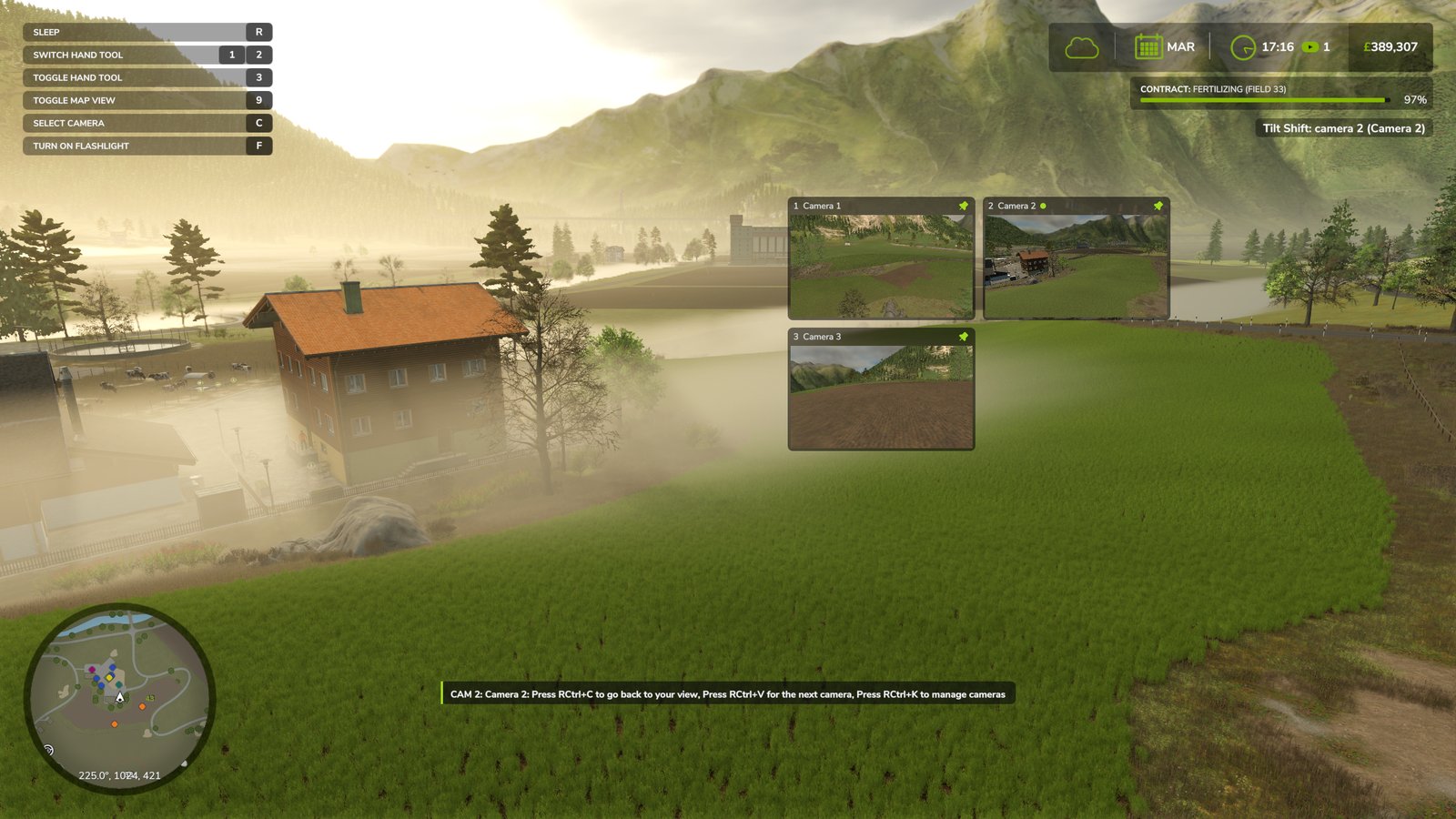
New cameras are named Camera 1, Camera 2 and so on. When you switch cameras, a message at the top of the screen shows which camera you are looking through.
While you are looking through a static camera:
- a bar at the bottom of the screen shows the keys: Right Ctrl + C to go back to your view, Right Ctrl + V for the next camera, Right Ctrl + K to manage cameras. It is part of the game's HUD, so it goes away whenever the HUD is hidden (the game itself has no key for that; see Filming);
- if you are on foot, the mod switches you to third person so that your character is visible, and back to first person when you return to the live view;
- the game's own camera key (C) does nothing until you go back to the live view, so it cannot switch you away from the static camera by accident;
- getting into or out of a vehicle does not change the view;
- menus, the sleep screen and cinematic camera mods still take over the screen as usual.
The STATIC CAMERAS section
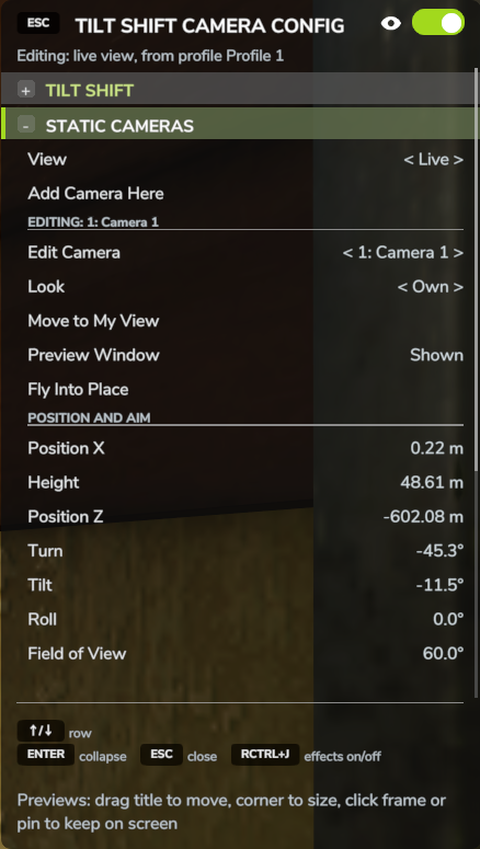
When you close the panel, the screen goes back to the view you opened it from. The View row, Edit Camera and flying a camera let you look through a camera while the panel is open. To keep playing while you look through a camera, close the panel and use Right Ctrl + C or Right Ctrl + V.
- View
- What is on screen while the panel is open: Live (your own view) or one of your cameras. Press Left or Right to switch.
- Add Camera Here
- Adds a camera at your current view, like Right Ctrl + N.
- Edit Camera
- Chooses which camera the rows below it change. The heading above the row shows that camera's name. Press Enter to look through it.
- Look
- Own, meaning the camera has its own effect settings, or one of your saved profiles. A new camera starts with a copy of the settings you had when you added it. With Own, any change you make while looking through the camera is saved with it. See Looks and profiles for cameras that use a profile.
- Move to My View
- Moves the camera to your current view. Its effect settings stay the same.
- Preview Window
- Shows or hides this camera's preview window.
- Fly Into Place
- Lets you fly the camera to a new position yourself. See below.
- POSITION AND AIM
- Sets the camera's position and direction precisely. Position X, Height and Position Z move it in steps of 0.25 m, or 2 m with Page Up and Page Down. Turn, Tilt and Roll rotate it in steps of 1 degree, or 10 degrees with Page Up and Page Down. Field of View can be set from 5 to 150 degrees.
- Delete Camera
- Deletes the camera after you confirm in the game's Yes/No dialog.
Flying a camera into place
Choose Fly Into Place in the panel, or click the fly button on the camera's preview window. The panel closes and you look through the camera. Use your movement keys (W A S D) to move the camera and the mouse to turn it. Hold Shift to move faster. Press Enter to save the new position, or Esc to cancel: the camera goes back where it was, and the screen goes back to the view you had before you started flying.
When you finish, the panel opens again: after Enter you are looking through the camera at its new position. Closing the panel takes you back to the view you opened it from.
On the map
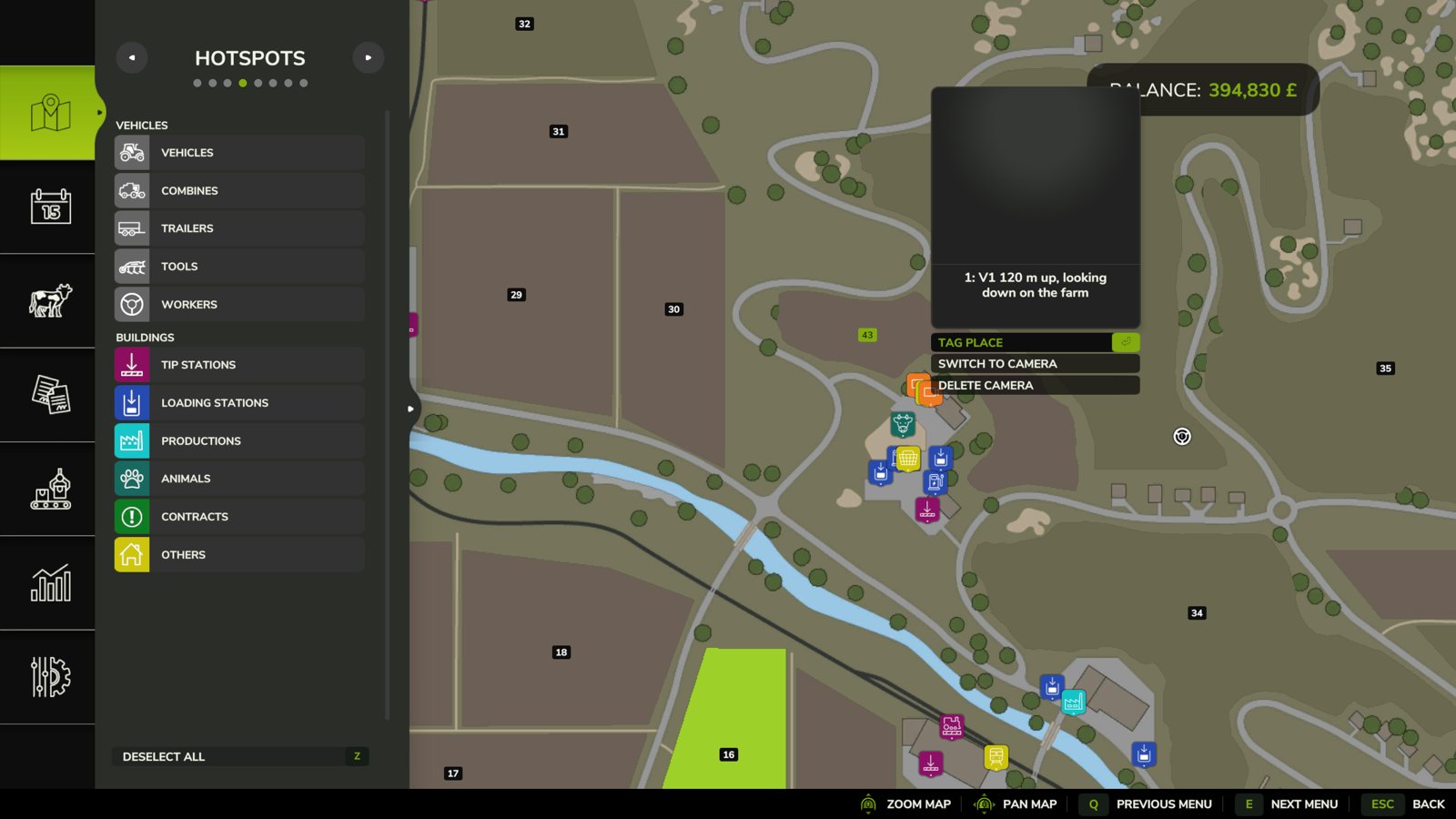
Each static camera is marked on the minimap and on the map in the pause menu. Select a camera on the pause-menu map to see two more options: Switch to Camera to look through it, and Delete Camera to delete it (you are asked to confirm).
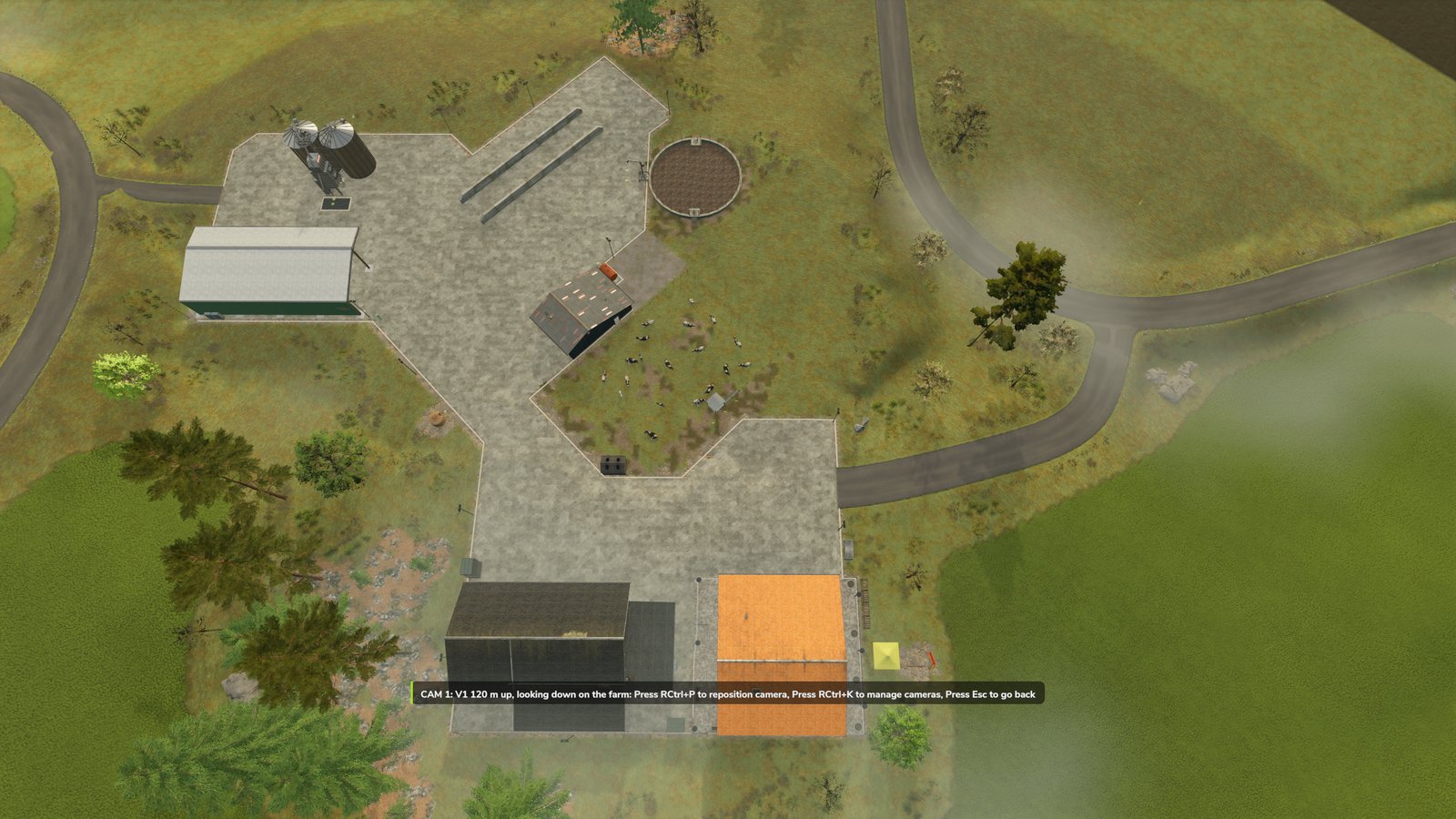
After Switch to Camera the menu closes and you look through the camera, with the HUD hidden and a bar at the bottom of the screen showing three keys:
| Key | What it does |
|---|---|
| Right Ctrl + P | Fly the camera into place (see above). When you finish, you are back looking through it from the map |
| Right Ctrl + K | Open the panel to manage your cameras. Closing it takes you back to the view you had before the map |
| Esc | Go back to the view you had before the map |
Saving
Cameras belong to the savegame you made them in and are written when you save the game.
The mod keeps its cameras in its own settings folder
(Documents/My Games/FarmingSimulator2025/modSettings/FS25_TiltShift), not in the savegame
folder, so they do not travel with a copied savegame. In multiplayer, each player has their
own cameras.
If you set Static Cameras to OFF in the panel, the cameras and everything related to them are hidden and you go back to the live view. Your cameras are not deleted: they come back when you switch Static Cameras on again.